
MagicLight Agent: A Smarter Way to Create AI Videos
October 28, 2026 · 5 min read
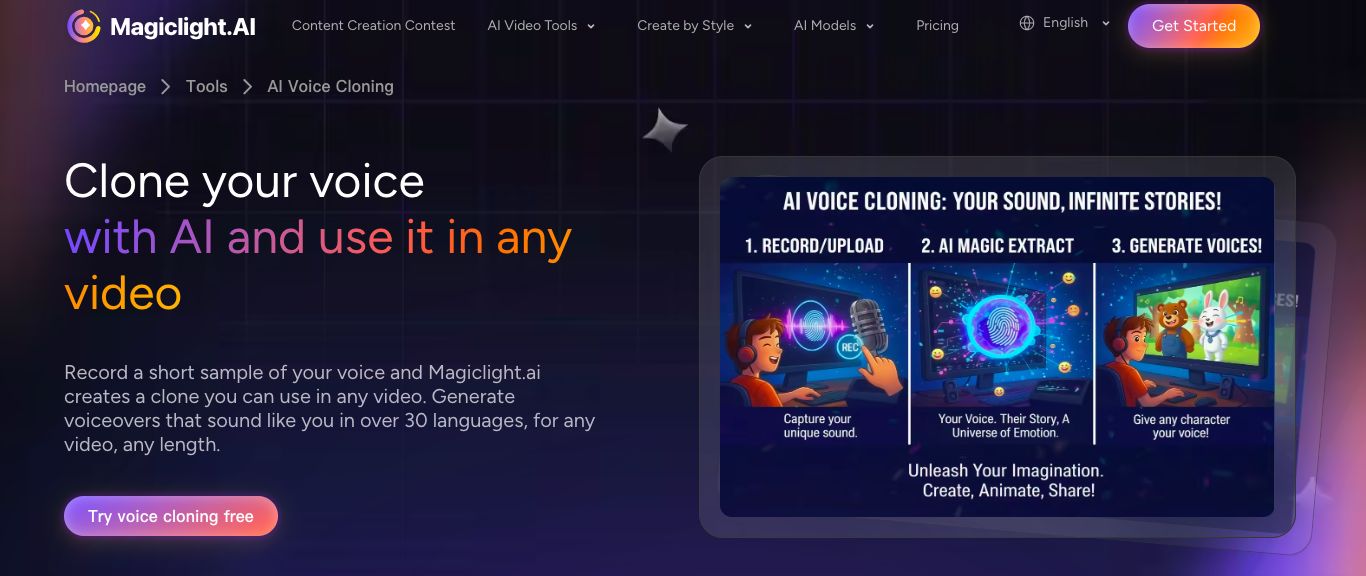
Making a video sounds simple at first, yet plenty of work appears once planning starts. A good story needs characters who belong there and scenes that make sense together. Add voice and editing to the job and even a short video takes time.
MagicLight Agent keeps the early planning work together so creators can develop ideas more. You share what you want to make while the Agent helps build out your story. Important choices stay open for review before your project moves ahead toward actual video creation. For new creators, this offers a practical way to develop videos without making planning complicated.
Part 1. What Is MagicLight Agent?
MagicLight Agent is part of MagicLight AI and helps turn a simple idea into a video project. Its main purpose is to guide early video planning before users begin generating the actual visual content.
Users start the process by sharing a simple video idea with the Agent through chat. The Agent develops that idea into a story that can move forward through the video workflow. Moreover, users can review the planned content during this process and decide whether the project should move forward.
This gives the video a clear direction while important creative choices are still open for user review. The approved project then moves to Story to Video or any of the 7 other suggested directions, where the planned content can become visual scenes. MagicLight Agent connects the first idea with later production inside the wider MagicLight AI video workflow.
Part 2. Key Features of MagicLight Agent
MagicLight Agent brings several useful features into the workflow to simplify early video planning for creators. These features cover important production choices and help shape the project before video generation actually begins:
- Plain-Language Briefs: Users can describe a video idea naturally without learning complicated prompt structures first. Follow-up messages let users change the direction as their video plan develops further.
- Niche and Format Detection: The Agent identifies a suitable content niche based on the initial video idea. Users can review its choice and request another direction when the result feels unsuitable.
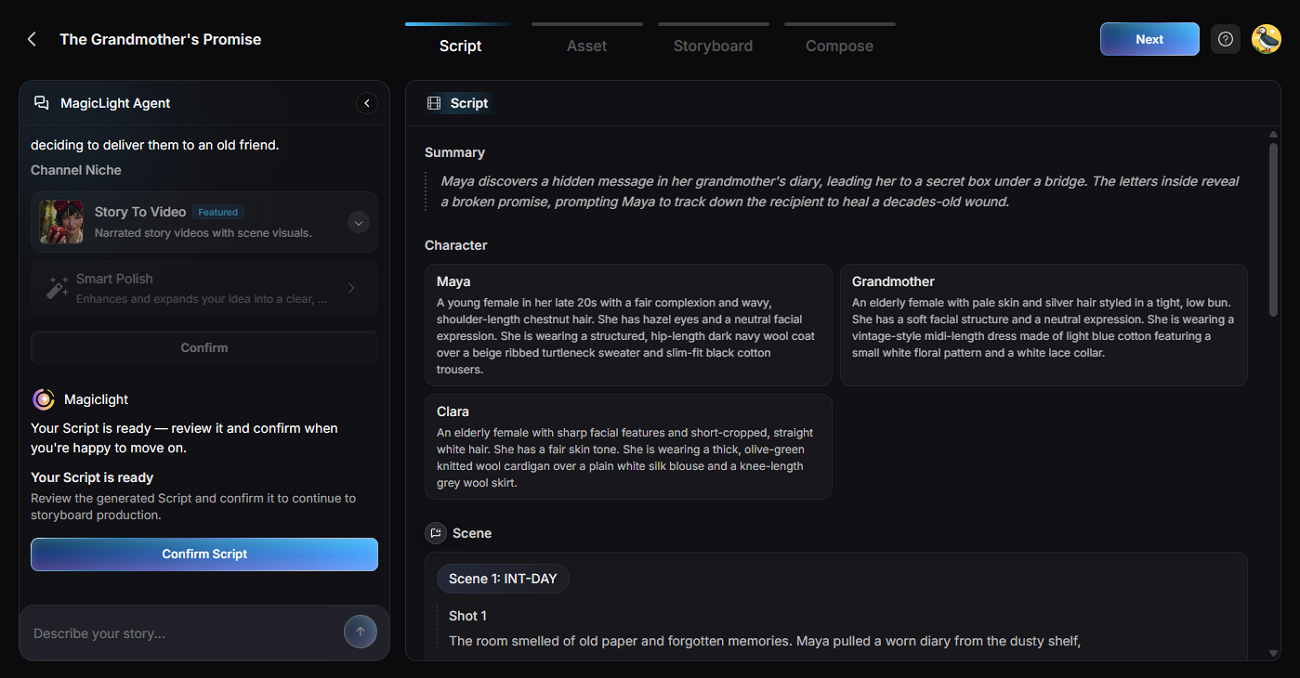
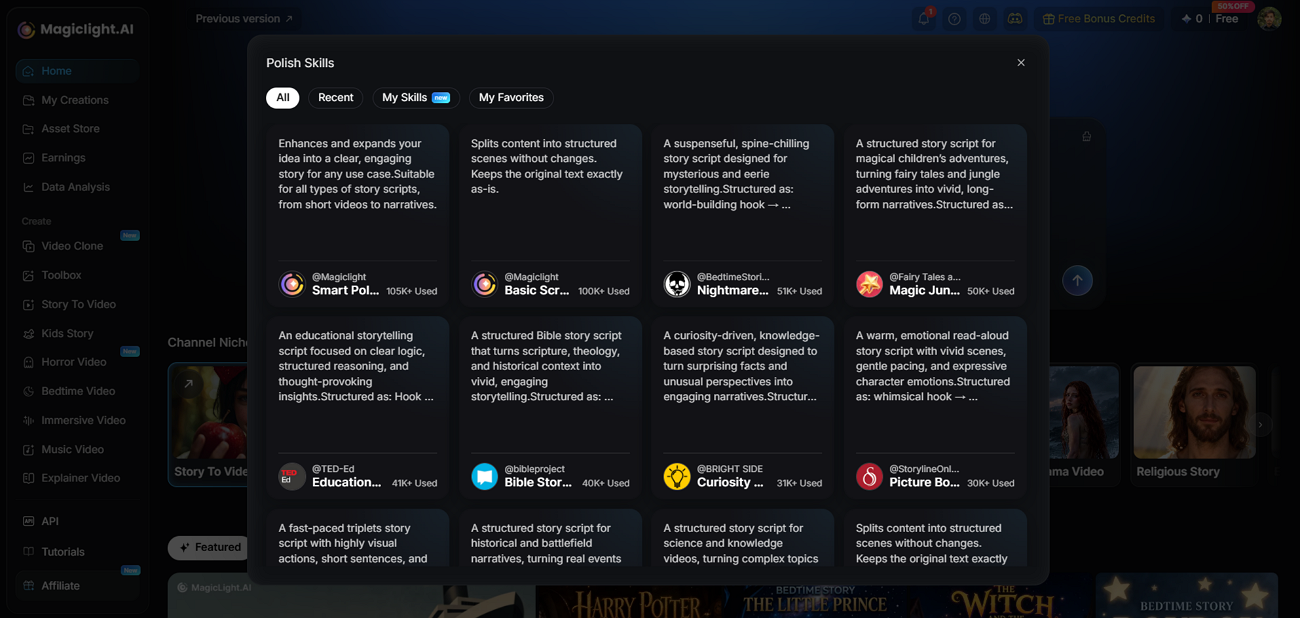
- Two Script Modes: Smart Polish develops rough notes into a fuller script with clearer story structure. Basic Script preserves the original writing while dividing its content into separate scenes.
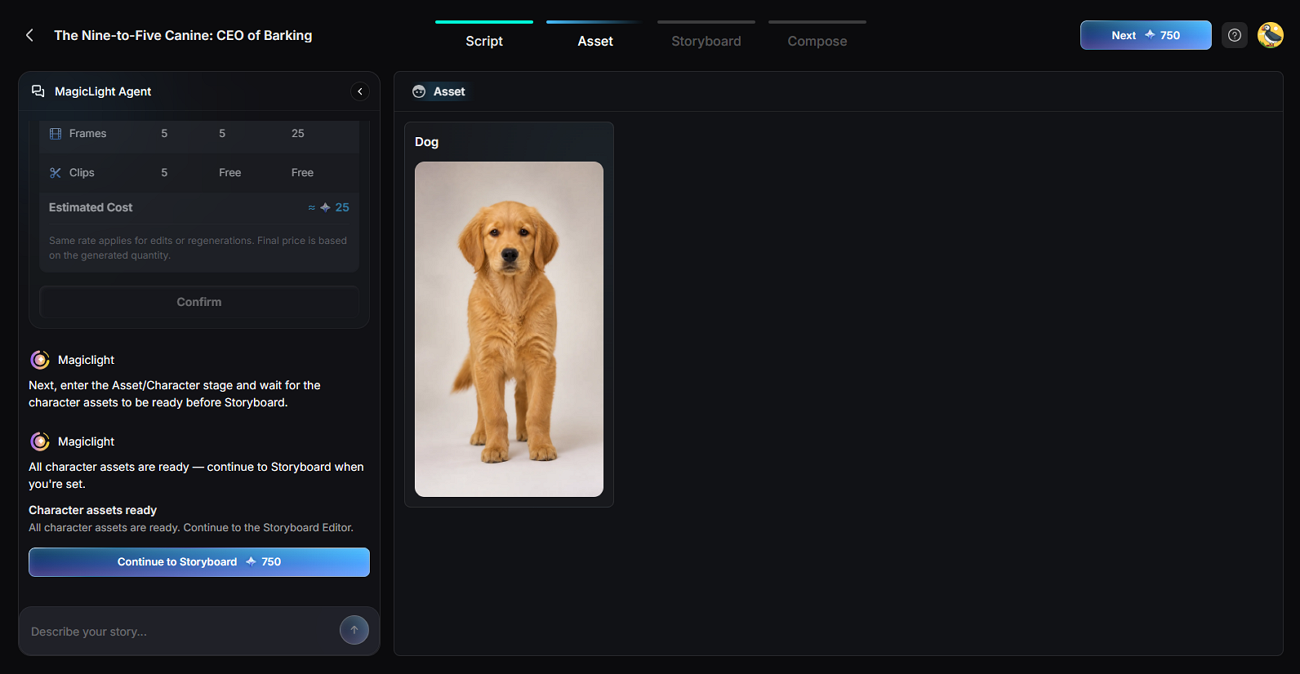
- Budget-Tiered Production Plans: MagicLight Agent provides different production plans that reflect available budget and quality options. Users can compare these choices before approving a plan for their video project.
Part 3. How to Use MagicLight Agent to Create a Video
The video creation process follows several stages that take your idea toward final production. Each stage gives you time to review the content before moving further with production. Use the steps below to create a video with MagicLight Agent from your idea:
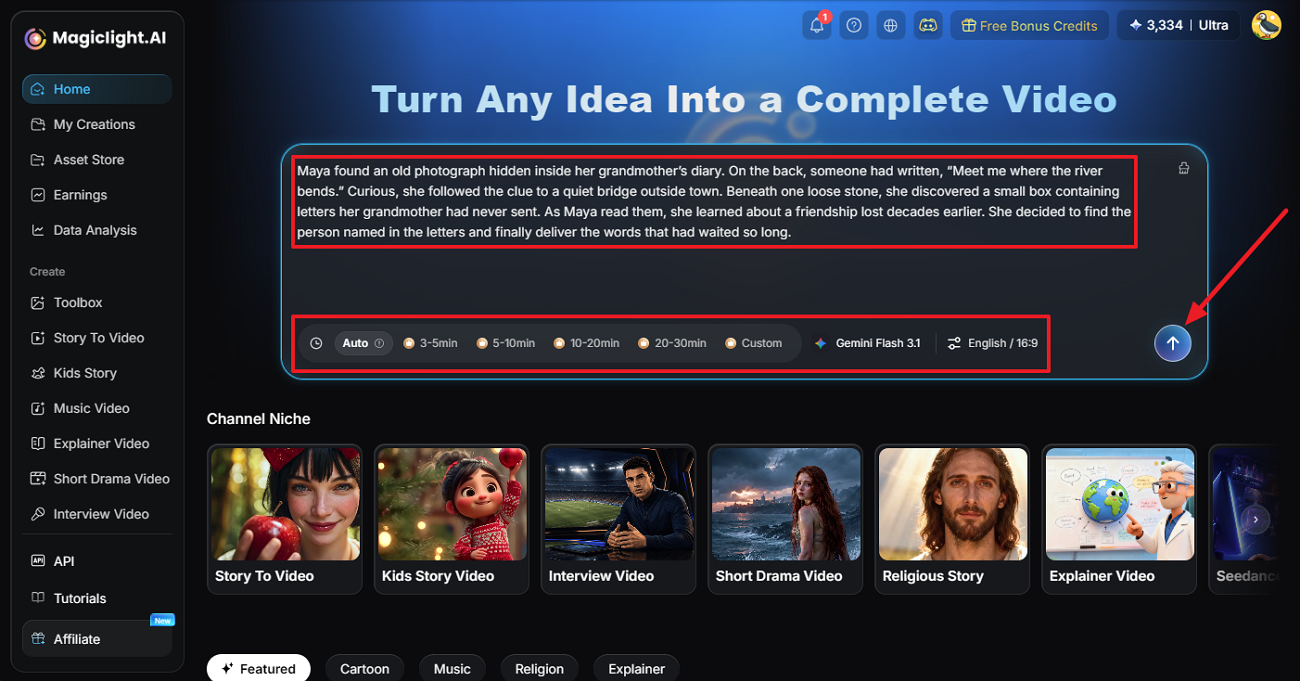
Step 1. Enter Your Video Script
Open MagicLight AI in your browser and put your script in the text box. Video duration comes first, followed by the Story Model you want to use. Pick the language and aspect ratio as well, then click Send.
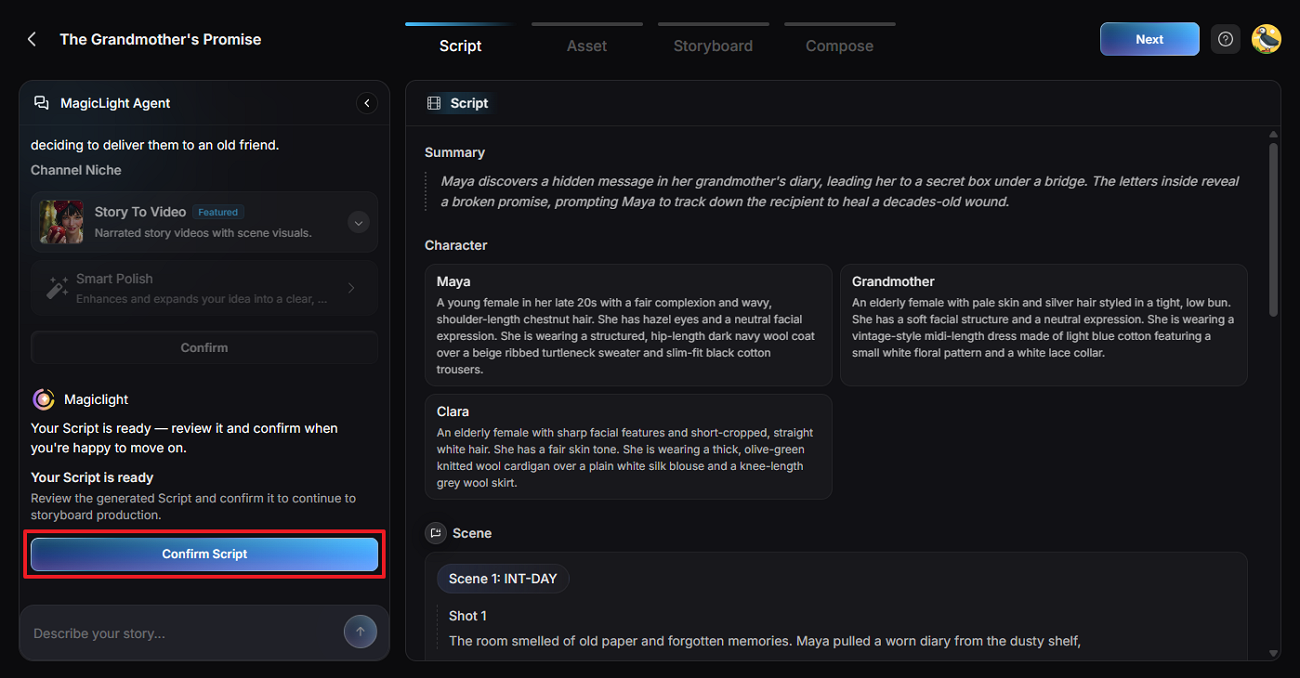
Step 2. Review and Confirm the Script
The first response from MagicLight Agent is a breakdown of the script. It gives you a summary and separates the story into scenes and shots. Read through these parts against what you originally wrote. If the Agent has taken something the wrong way, fix it before going further. Click Confirm Script once the story is in order.
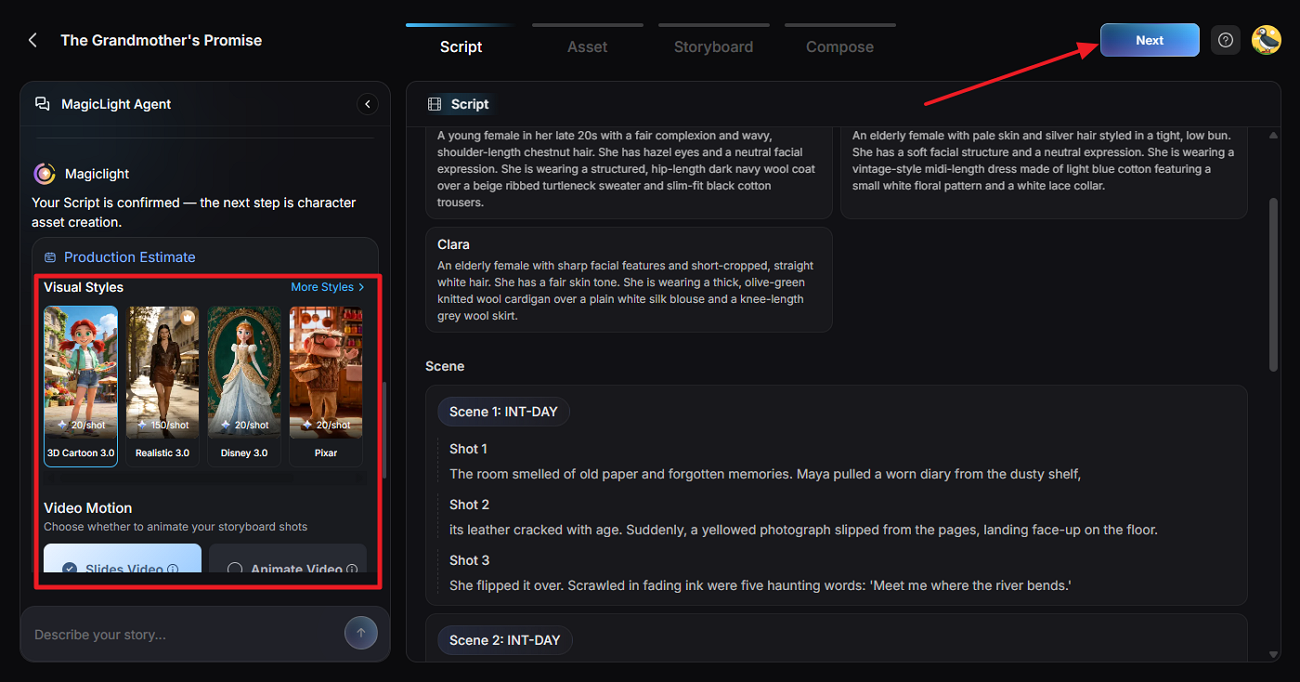
Step 3. Choose the Production Settings
Now choose how the video should look. Visual Style handles its appearance, while Slides Video and Animate Video give you 2 ways to present the scenes. Set the other options you need and confirm them.
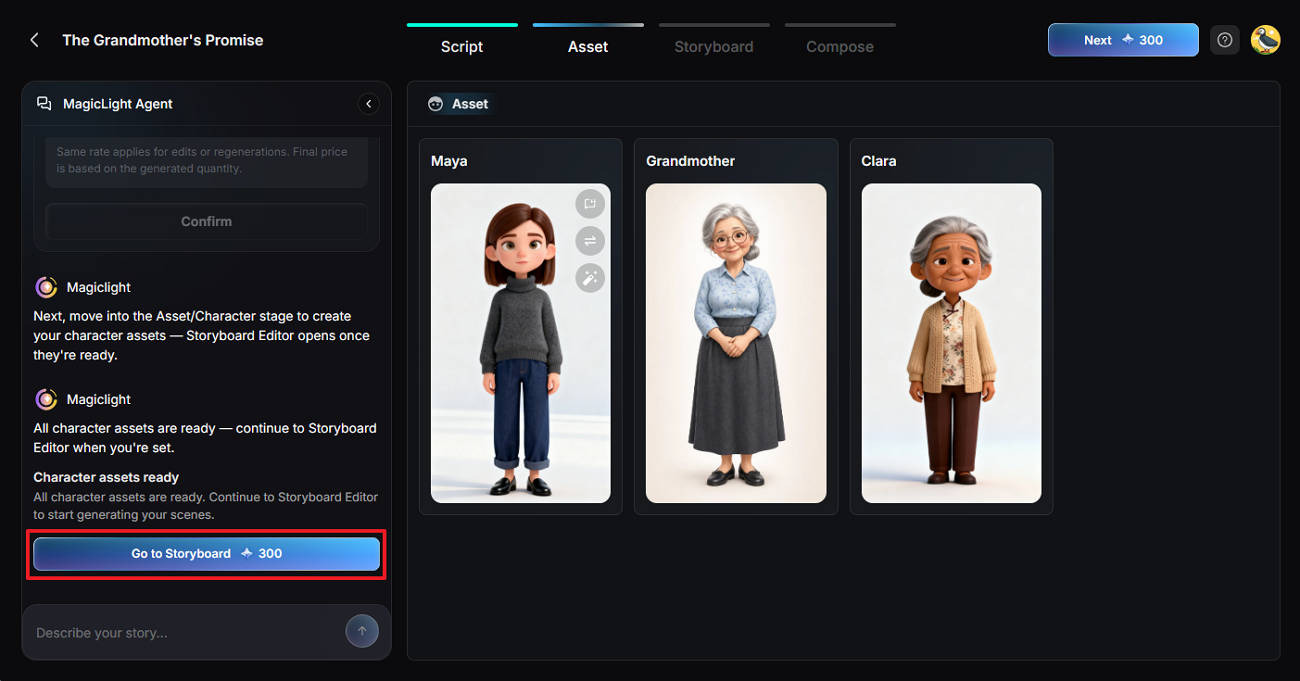
Step 4. Review the Character Assets
The characters from the script appear as assets at this stage. Look at each one and see whether it fits the person you described. Make any changes you need here. When they are ready, click Go to Storyboard.
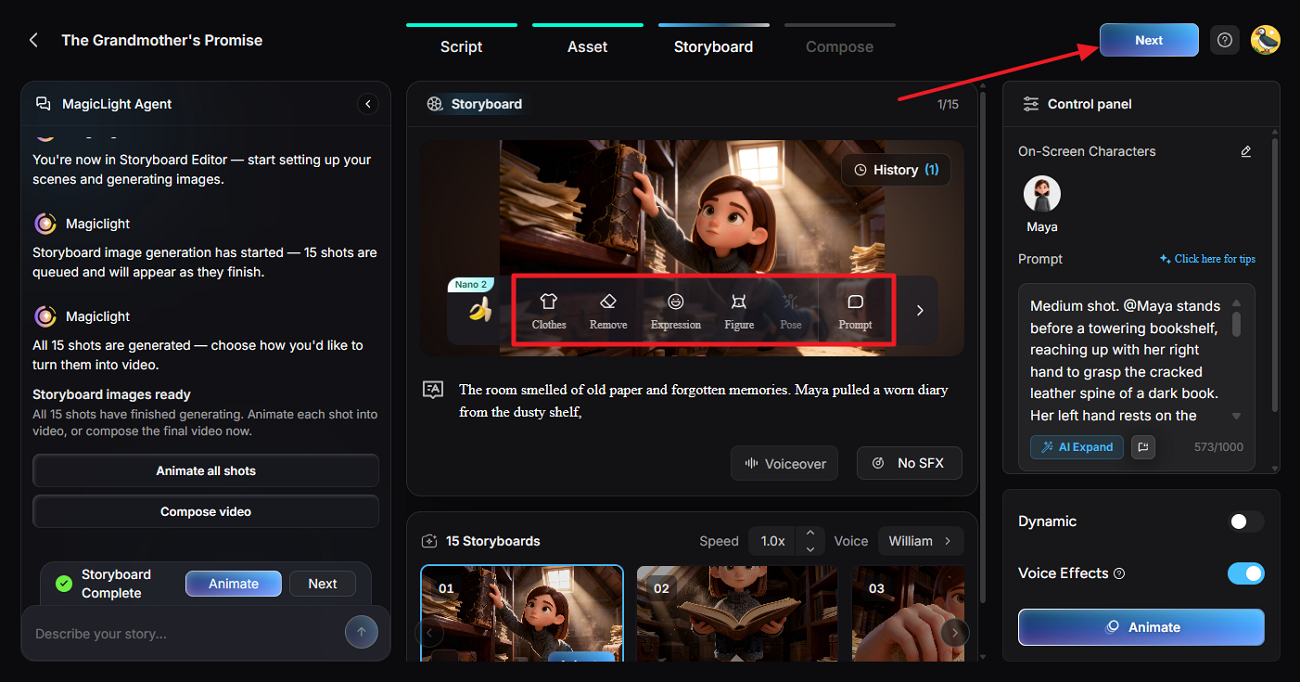
Step 5. Edit and Animate the Storyboard
Go through the storyboard and open any shot that needs attention. Clothes, Expression, and Pose are available when a frame needs a different look. Once you have checked the shots, press Next.
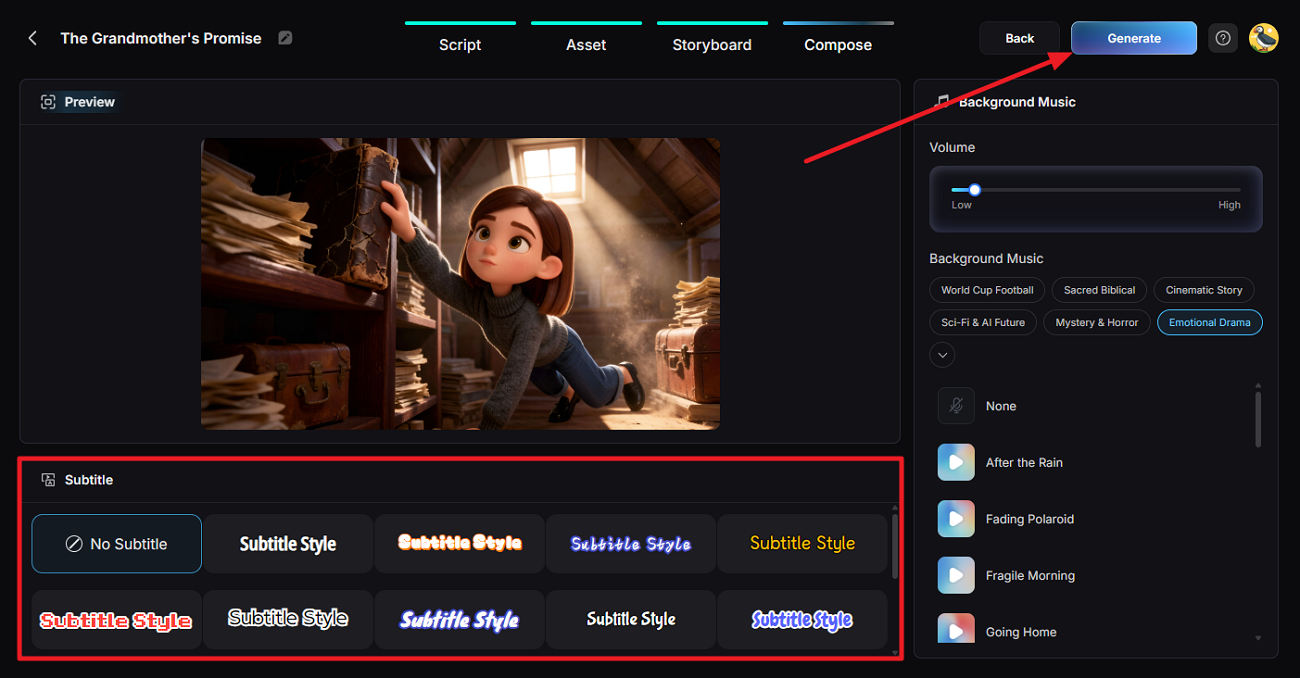
Step 6. Compose and Generate the Video
Preview what you have so far. Pick a Subtitle Style or choose No Subtitle if the video does not need captions. You can also pick the Background Music and change its volume. Click Generate when everything is set.
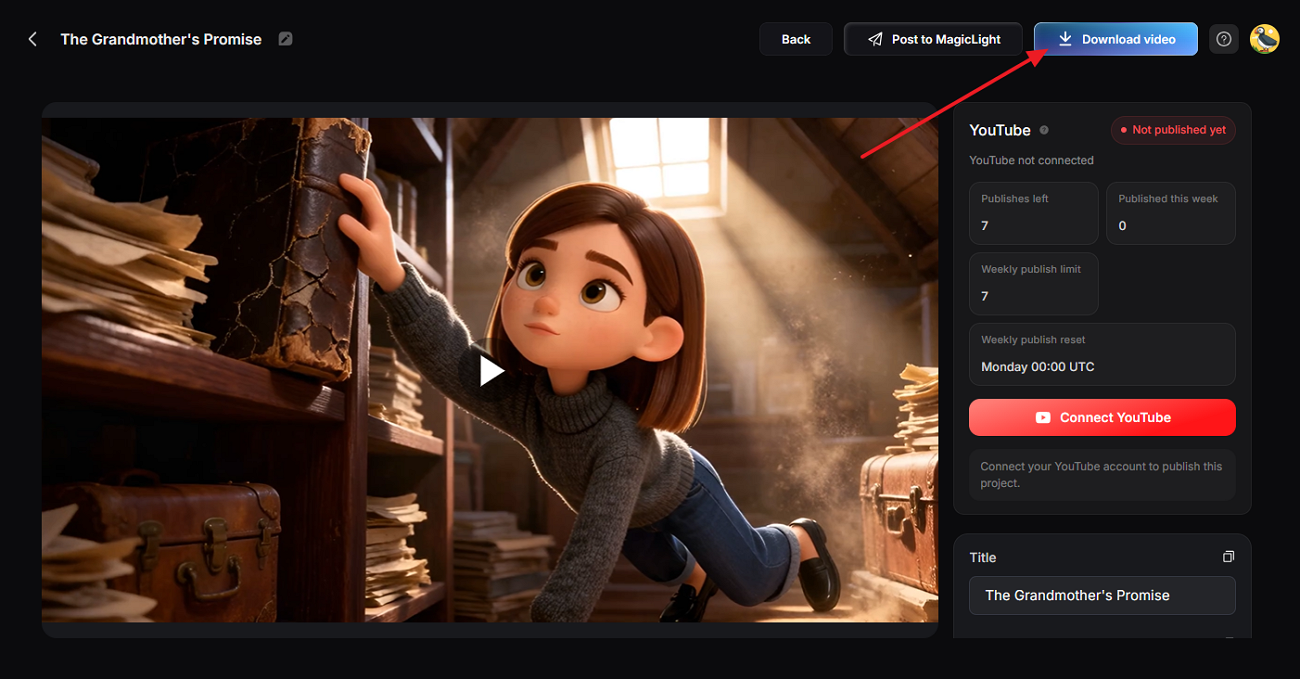
Step 7. Download the Finished Video
Give the finished video a full watch before saving it. Check the scenes and pacing against the story you started with. If everything works as planned, click Download video to save the file.
Part 4. Why Consider MagicLight Agent for AI Video Creation?
Choosing the right video tool depends on how well it supports your regular creative work. MagicLight Agent offers practical advantages that can make repeated video production easier to manage. Below are the main reasons to consider MagicLight Agent for your video creation workflow:
Lower-Cost Tests for New Ideas
Tiered production plans let creators test new video ideas without starting with full animation. A Slides Video can test the story before more resources go toward animated production. This approach gives regular creators more room to experiment with different ideas and formats.
One Cast Across a Series
Saved characters can return in later projects without creating their appearance again from scratch. This helps recurring characters keep a familiar look when creators produce videos as series. Weekly channels can bring the same lead into new stories without another design process.
Longer Stories With Full Narration
MagicLight AI offers 37 stock voices plus voice cloning across 11 supported languages. Paid users can make 50-minute projects with the Long Video Generator for longer stories. Finished screenplays can enter Script to Video directly when Agent planning is not required beforehand.
Guidance Throughout the Workflow
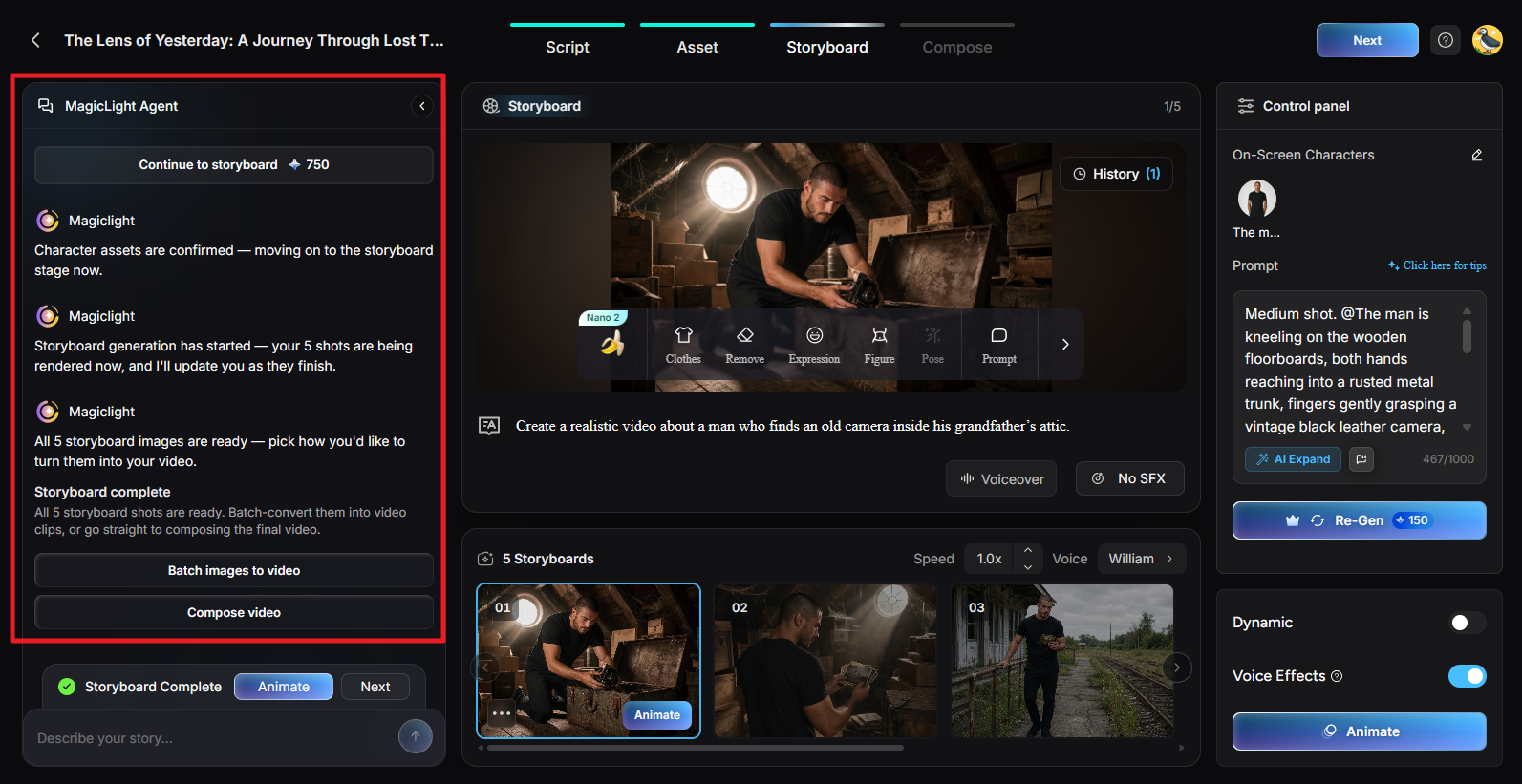
The Agent stays beside the project and provides updates as each production stage progresses. It tells users when storyboard images finish and shows what they can do next. This guidance makes longer workflows easier to follow without losing track between different stages.
Conclusion
To conclude, MagicLight Agent gives creators a clearer path from an early idea to production. It handles much of the planning before the project reaches the video generation stage. Users can shape the story and review important choices as the project moves forward. The final creative direction still stays with the person creating and reviewing the video.
FAQs About MagicLight Agent
Can beginners use MagicLight Agent?
Beginners can use MagicLight Agent without having previous video editing or scriptwriting experience beforehand. Its guided workflow handles much of the planning while users review important creative decisions. Users still control their story direction by checking each stage before moving forward further.
What types of videos can I create with MagicLight Agent?
MagicLight Agent supports different formats for stories, dramas, interviews, explainers, and other video projects. Users can choose a suitable direction based on the story they want to produce. Each format gives creators a starting point for shaping their content before video generation.
Is MagicLight Agent free to use?
New MagicLight AI accounts can try MagicLight Agent with a limited number of credits. Free exports have 720p resolution and include a watermark on the completed video file. Paid plans start at $7.50 monthly with yearly billing and remove the export watermark.