
How to Reduce MacBook Battery Usage When Running Local AI
July 27, 2026 · 4 min read
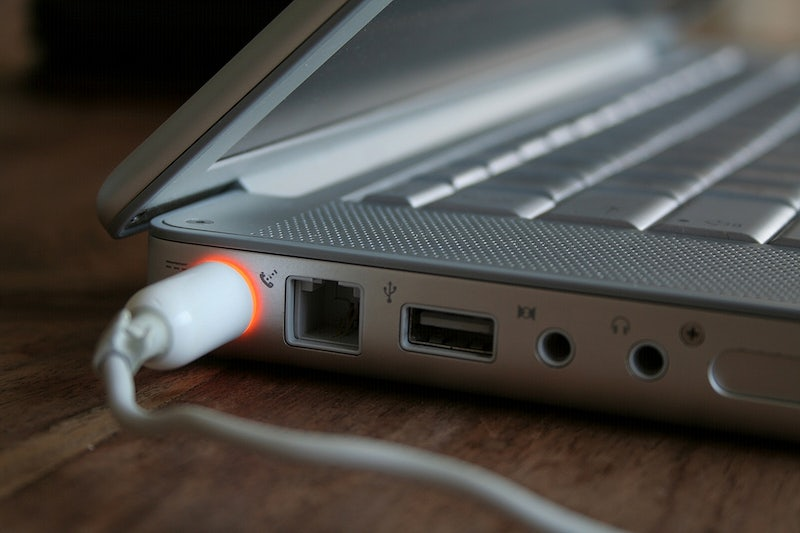
Using local AI tools is becoming the norm, especially among MacBook users. By doing this, they preserve their privacy, and they get a chance to do research, write content, or work on their code without wandering online. Battery drain is one of the trade-offs worth weighing among the broader pros and cons of AI, since the same on-device models that protect your privacy also lean hard on your CPU and GPU.
If you ever tried your local AI, you are probably consulting it frequently now, but there is a problem you might have noticed. Have you ever wondered, “Why does my MacBook die so fast?” If the answer is yes, then you’re one of many users who faced this issue: local AI workloads are demanding, and they drain your battery quickly enough to leave you feeling concerned. Why does it happen, and how can you fix it?
Key Reasons for MacBook Battery Draining Fast with Local AI
While Macs come with impressive functionality, plenty of users hope to expand it even further. You might have wondered how to use Macbook as monitor to enhance your workspace; Macs don’t support direct HDMI input, but you can follow quick steps to apply software- and hardware-based solutions to fix it. Local AI tools work based on a similar principle; you install them to expand the pool of available features, but each such addition drains your battery a little more.
Giving up local AI is not an option, so the next step is figuring out why it interferes with your battery charge. Here are the main reasons behind it:
- Processor and GPU load. AI models heavily rely on your CPU and GPU to function. They cover tons of information in seconds, and such non-stop pressure affects your battery charge.
- Memory usage and background processes. The larger your model is, the more RAM it consumes. macOS might be forced to use background processes to manage everything, and it becomes an additional drain on the battery.
- Heat generation. Naturally, the harder your Mac works, the hotter it gets. This forces the cooling fans to start working actively, which also drains some energy.
- Model size. Larger models always drain battery sooner; this has to do with both memory usage and the countless calculations done per second.
Is the situation hopeless, then? No, not at all. There are solutions that can help you expand your battery life, and we are going to explore them below.
Practical Tips to Extend the Lifespan of a MacBook
How long do Mac laptops last? Typically, the battery can survive about 1K rounds of charge, so the faster it drains, the more often you need to charge it. To stop this downward trend, you need to follow the tips below.
Use Smaller or Quantized Models
Like we’ve established, large models consume way more power. You can go for models advertised as “lite” or “quantized”: these versions use less memory, and they don’t hit your battery just as hard. Performance might fall a bit, yes, but the lifespan will increase.
Limit Context Length
AI models process texts in chunks, so the larger context you give, the harder your Mac has to work. Try these solutions:
- If it’s possible, reduce the prompt length to the absolute required minimum.
- Don’t feed the entire document to your local AI in one go.
- Break other tasks into smaller sections; this will let your AI breathe.
The battery life should improve quickly after this.
Close Unnecessary Applications
In the latter part of last year, Apple users downloaded over 8b apps. Before that, the number stood at 28b; all these apps might be helpful, but they contribute to battery drain.
How many of them are running in the background when you don’t need them? Check Activity Monitor and close all the unnecessary apps. This especially concerns browsers, photo, music, and video apps.
Enable Low Power Mode
Macs have a built-in Low Power Mode to conserve energy. Start using it before activating your local AI tools. This is how you can do it:
- Go to your System Settings.
- Find Battery there and click on it.
- Switch to Low Power Mode.
This solution will save your battery to an extent, letting it last longer.
Reduce Screen Brightness
You may not know this, but screen brightness is one of the largest sources of quick battery drain. Lower it to at least 70%; you can also try 50% and see if it’s comfortable. Consider using dark modes, too, and little by little, you’ll preserve a part of your battery’s energy.
Run Shorter Sessions
Longer AI sessions make your Mac heat up faster. Try making fewer requests at a time; let the system cool off and then ask another portion of questions.
Keep macOS and AI Software Updated
Most macOS updates include optimizations that allow batteries to conserve their energy for longer. Keep your AI tools and your macOS updated at all times. The more of these solutions you use, the longer your battery will stick around.