
Best Free AI Tools for Translating and Dubbing Videos in 2026
November 13, 2026 · 7 min read
Updated November 2026
Quick answer: The best free AI tool for translating and dubbing videos in 2026 is VideoDubber. It is the only tool on this list that combines voice cloning, lip sync and more than 150 languages with a free start (5 free minutes, no credit card). For subtitles only, YouTube’s auto-translated captions and the open-source Whisper are the best free options.
A video that only speaks one language reaches only part of its possible audience. Translating it used to mean hiring translators, booking voice actors and paying an editor to rebuild the timeline. In 2026, AI tools handle most of that work, and many of them let you start for free.
This guide covers free and freemium AI tools for the four jobs that make up video localization: transcription, subtitles, voiceover and full dubbing. For each tool you’ll find what it does well, where the free option stops, and which kind of creator or team it suits.
How we picked these tools
We compared each tool on six criteria: whether it offers a free plan or free minutes, the number of supported languages, voice dubbing, voice cloning, lip sync, and the export formats available. Tools that only translate text, or that have no free way to try them, were left out.
How AI video translation works
Most tools follow the same pipeline, even when they hide it behind one button:
- Speech recognition. The AI transcribes the original audio into text, with timestamps.
- Machine translation. The transcript is translated into the target language, ideally with context, so idioms and product names survive.
- Output. The translation becomes subtitles, a synthetic voiceover, or a dub that clones the original speaker’s voice.
- Sync. Better tools re-time the audio to match scene cuts, and some adjust the speaker’s lip movements to the new language.
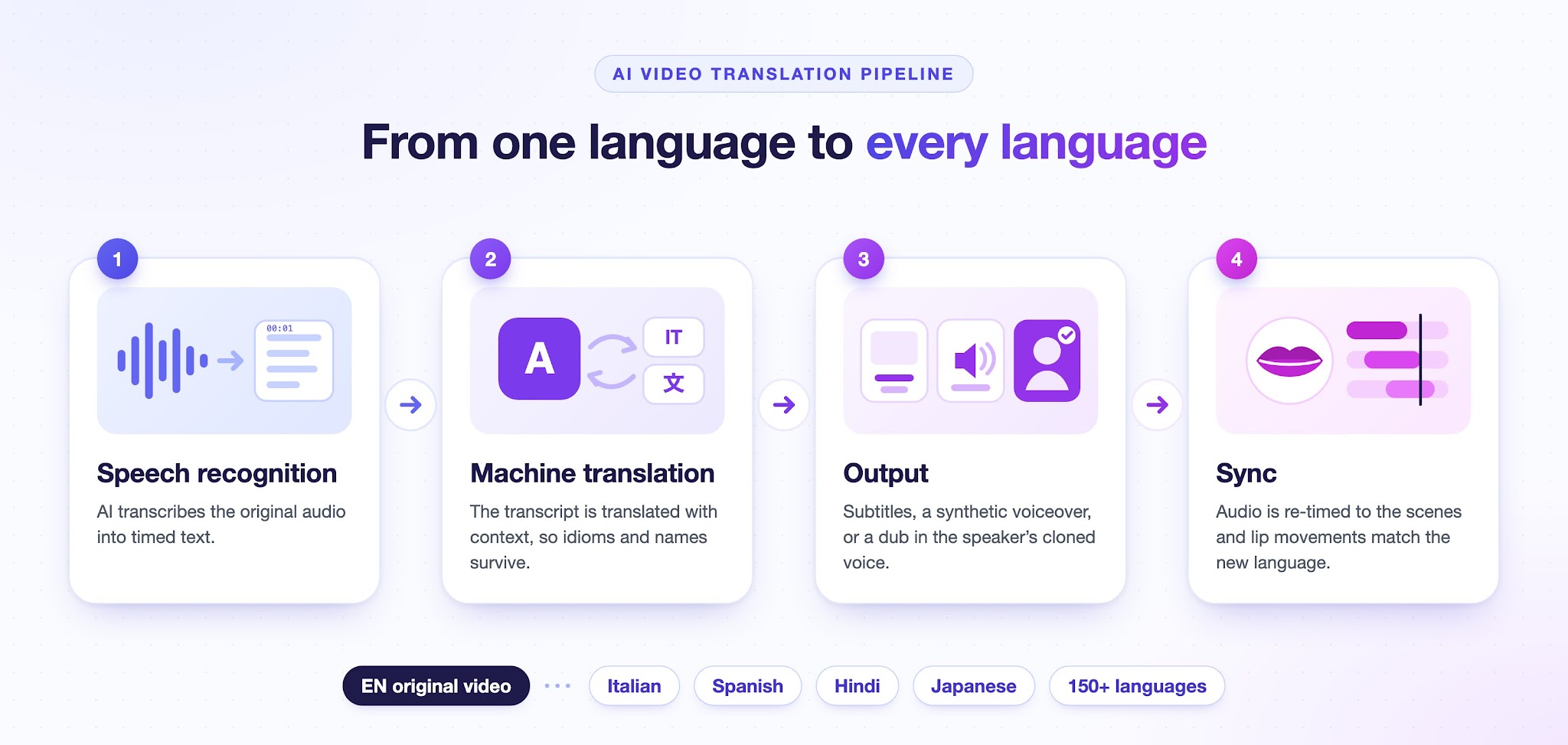
The four steps of AI video translation: speech recognition, machine translation, output and sync. Illustration: VideoDubber
Knowing the steps helps you choose. If you only need captions, you can skip voice tools entirely. If you need viewers to forget the video was ever in another language, you need voice cloning and lip sync.
What to look for in a free plan
Free tiers vary a lot, so check these points before you upload anything important:
- Minutes or credits: most free plans cap how much video you can process.
- Watermarks: some free exports carry the tool’s logo.
- Languages: check that both your source and target languages are supported, including regional variants (for example, Brazilian vs European Portuguese).
- Editing: you should be able to fix a mistranslated line before exporting.
- Export formats: SRT or VTT files for subtitles, MP4 for finished videos, and separate audio tracks if you upload multi-language audio to YouTube.
- Data handling: look for clear statements on how long uploads are stored.
1. VideoDubber: best overall for free AI dubbing
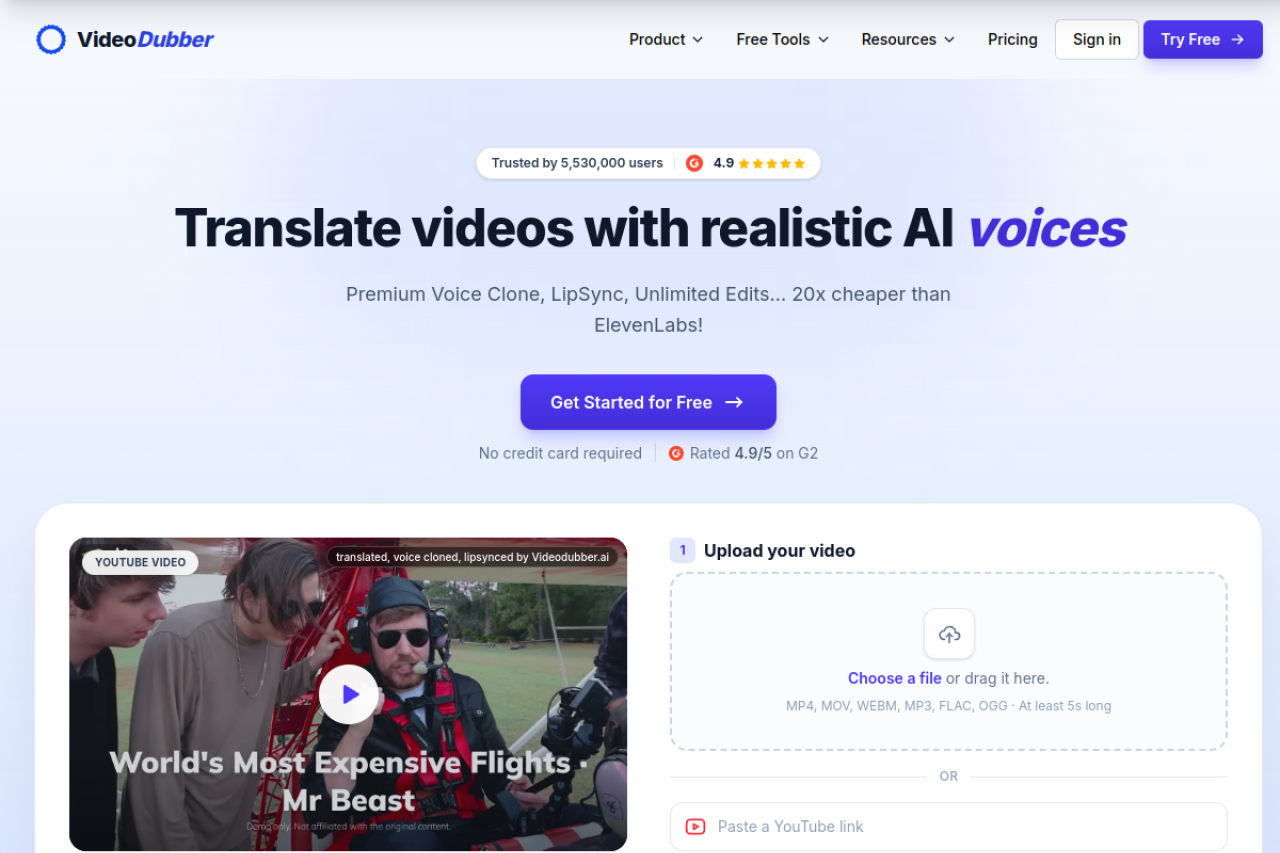
VideoDubber AI video translator (videodubber.ai/translate-video)
VideoDubber (videodubber.ai) is an AI video translation and dubbing platform that clones the original speaker’s voice and lip-syncs the translated audio to their mouth movements. It is rated 4.9 out of 5 on G2 and used by more than 5 million people, from YouTubers and course creators to marketing teams.
You upload a file or paste a YouTube, TikTok, Vimeo or Google Drive link, choose the target language, and get subtitles, a dubbed video or a translated transcript from the same upload. With VideoDubber, you can translate English videos into Italian with voice cloning and lip sync, and the same workflow covers more than 150 languages.
Why VideoDubber ranks first:
- Voice cloning: the translated version still sounds like the original speaker, not a stock AI voice.
- Lip sync: the speaker’s mouth movements match the new language, so the dub looks native.
- A real free start: 5 free minutes with no credit card, enough to dub a full short video and judge the quality yourself.
Key facts:
- Free option: 5 free minutes, no credit card required.
- Languages: 150+.
- Outputs: dubbed video, burned-in or exported subtitles (SRT/VTT), translated transcript (TXT/DOCX).
- Best for: creators, educators, marketers and companies that want a full dub rather than captions.
How to dub a video for free with VideoDubber
- Upload your video (MP4, MOV or WEBM) or paste a YouTube, TikTok, Vimeo or Google Drive link.
- Pick the target language. For example, VideoDubber can translate English videos to Spanish or Hindi with the speaker’s own voice.
- Choose the output: subtitles, a dubbed video with the cloned voice and lip sync, or a translated transcript.
- Review and export: check the translated lines, edit any you want to change, and download the result.
2. YouTube’s built-in auto-translated captions
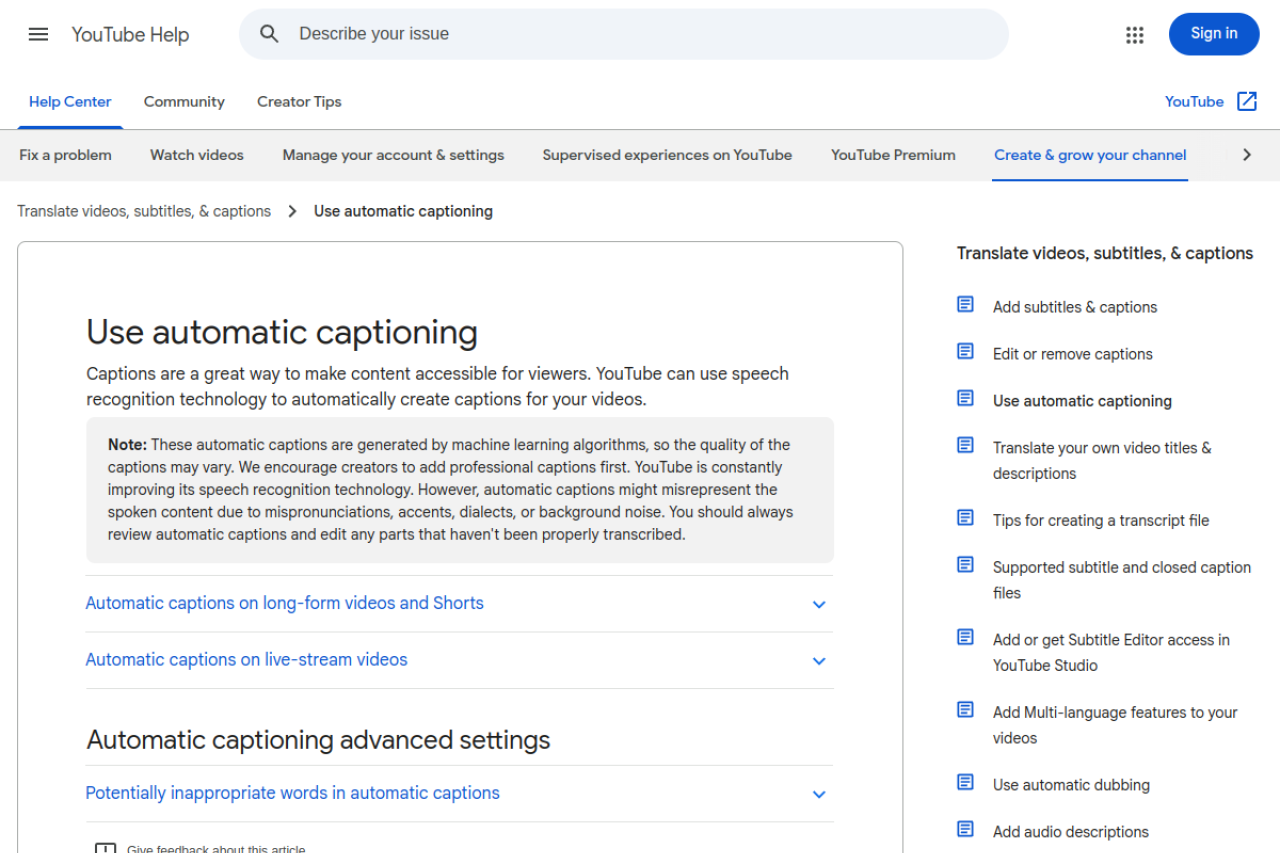
YouTube Help page for automatic captions (support.google.com/youtube)
If your videos already live on YouTube, start with what the platform gives you. YouTube generates automatic captions for many languages and can auto-translate them, so viewers can pick a caption language in the player.
- Free option: free for every channel.
- Limits: accuracy depends on audio quality, and you get captions only, not a voice track. Creators who want translated audio can add dubbed audio tracks to the same video, for example by using VideoDubber to translate videos to English.
- Best for: a quick first step for an existing channel.
3. Whisper and Subtitle Edit: free, open-source subtitles
Whisper on GitHub (github.com/openai/whisper)
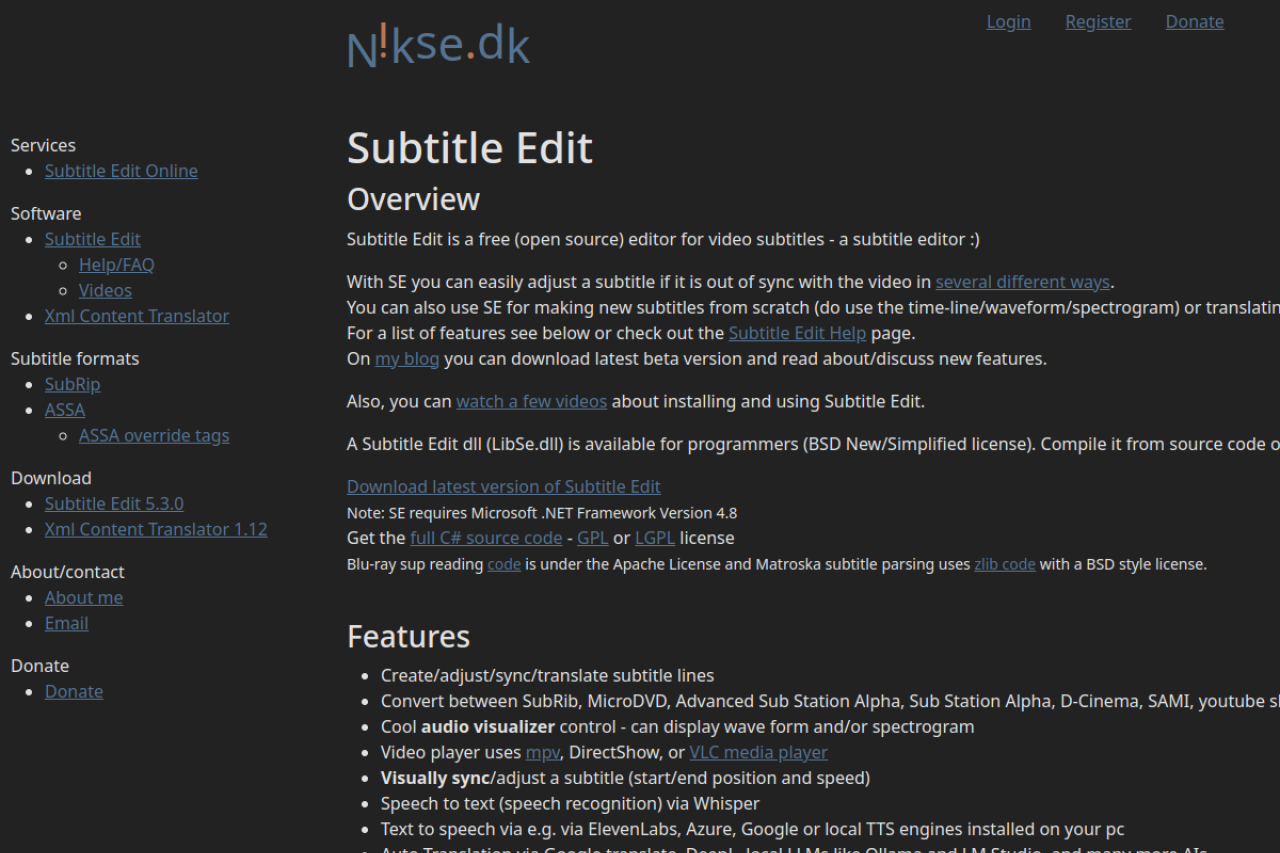
Subtitle Edit homepage (nikse.dk/subtitleedit)
OpenAI’s Whisper is an open-source speech recognition model that transcribes and translates speech in dozens of languages. On its own it runs from the command line, but Subtitle Edit, a free subtitle editor for Windows, can use Whisper to generate timed subtitles that you then correct and export.
- Free option: fully free and open source; runs on your own computer.
- Limits: setup takes some technical comfort, long videos are slow without a good GPU, and there’s no voiceover.
- Best for: privacy-conscious users and anyone who subtitles a lot and wants no usage caps.
4. CapCut: auto captions for short-form video
CapCut homepage (capcut.com)
CapCut’s editor includes automatic captions and caption translation, which makes it a common choice for TikTok, Reels and Shorts creators who already edit there.
- Free option: auto captions are available on the free plan; some advanced features and exports need a paid plan.
- Limits: built around short social clips rather than long videos or full dubbing.
- Best for: short-form creators who want translated captions in the same app they edit in.
5. VEED and Kapwing: browser-based subtitle editors
VEED homepage (veed.io)
Kapwing homepage (kapwing.com)
VEED and Kapwing are online video editors with AI subtitle generation and translation. Both run in the browser, so there’s nothing to install, and both let you style captions to match your brand.
- Free option: free plans with limits on length and exports; free exports may carry a watermark.
- Limits: dubbing and voice features sit mostly on paid plans.
- Best for: marketing teams that want polished, on-brand subtitles without desktop software.
6. Descript: edit video by editing text
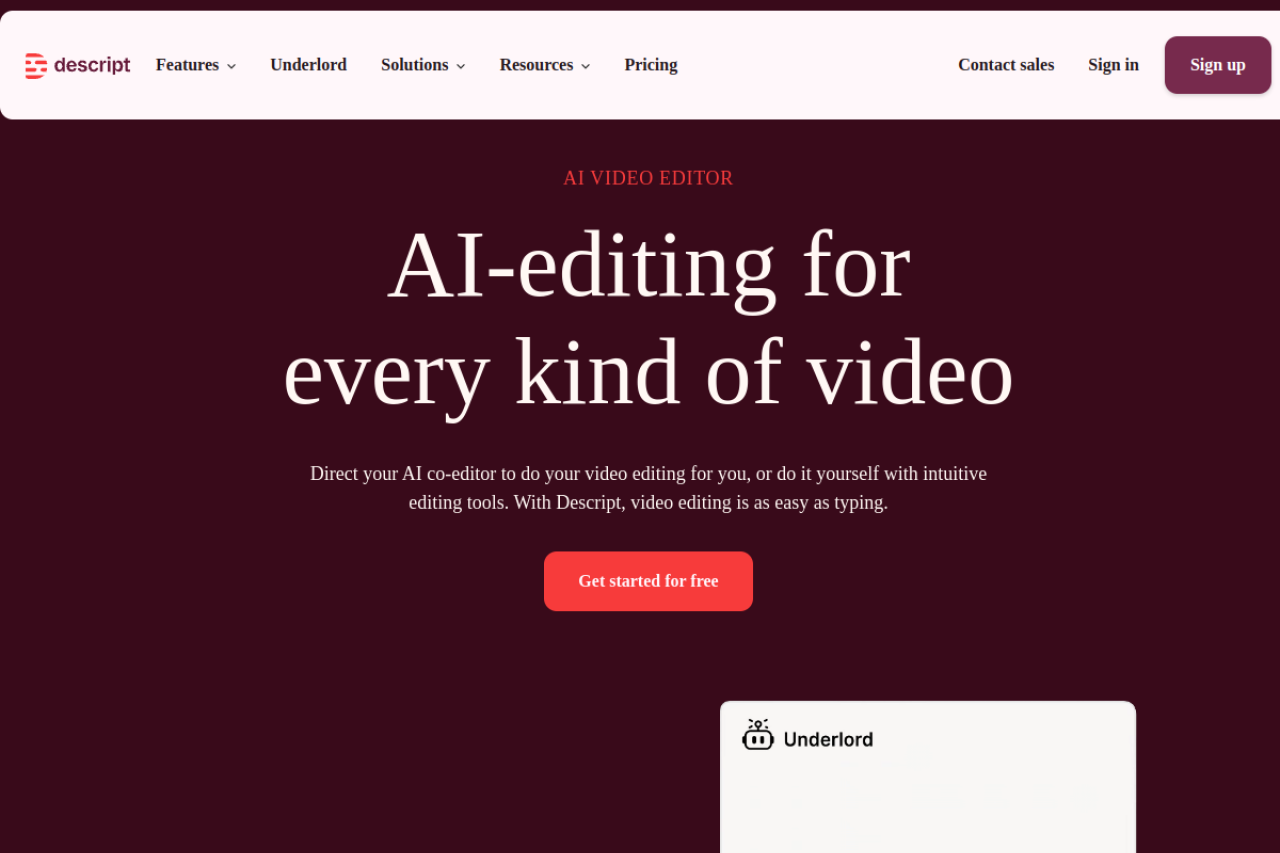
Descript homepage (descript.com)
Descript transcribes your video and lets you edit it like a document: delete a sentence from the transcript and it disappears from the video. It also offers translated captions and AI voice features.
- Free option: a free plan with limited transcription and export.
- Limits: translation is one feature of a broader editor, not its main focus.
- Best for: podcasters and creators who want transcription, editing and captions in one place.
7. ElevenLabs and HeyGen: AI voices and avatars
ElevenLabs homepage (elevenlabs.io)
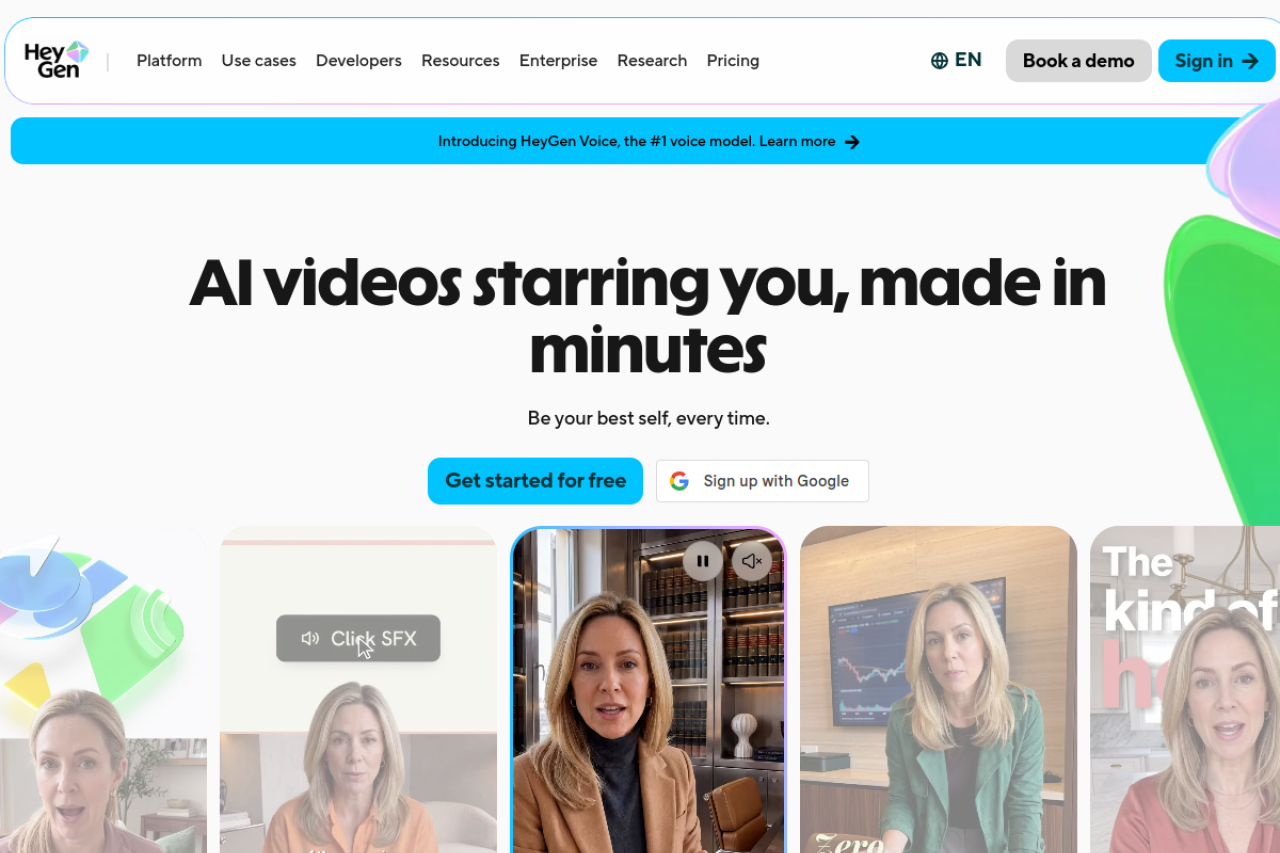
HeyGen homepage (heygen.com)
ElevenLabs is known for realistic AI voices and also offers dubbing. HeyGen focuses on AI avatars and includes video translation with voice and lip sync.
- Free option: both have free tiers or trial credits with tight limits.
- Limits: free credits run out quickly on longer videos, and costs rise fast at volume.
- Best for: testing AI voices or avatar-led videos before committing to a plan.
Quick comparison
| Tool | Main use | Free option | Languages | Voice dubbing | Voice cloning | Lip sync | Exports |
|---|---|---|---|---|---|---|---|
| VideoDubber | Full video dubbing and subtitles | 5 free minutes, no card | 150+ | Yes | Yes | Yes | MP4, SRT/VTT, TXT/DOCX |
| YouTube auto-captions | Translated captions on YouTube | Free | Many | No | No | No | Captions in the player |
| Whisper + Subtitle Edit | Open-source subtitles | Free, unlimited | Dozens | No | No | No | SRT and other subtitle files |
| CapCut | Short-form captions | Free plan | Varies | Limited | Varies | No | MP4 |
| VEED / Kapwing | Browser subtitle editing | Free plans | Varies | Paid plans | Paid plans | No | MP4, SRT |
| Descript | Text-based editing and captions | Free plan | Varies | Paid plans | Paid plans | No | MP4, SRT |
| ElevenLabs / HeyGen | AI voices and avatars | Free credits | Varies | Yes | Yes | HeyGen: yes | MP4, audio |
“Varies” means the answer depends on the plan; free plans and limits change often, so check each tool’s pricing page before you start a project.
How to choose
- You only need captions: YouTube auto-captions or Whisper with Subtitle Edit will do it for free.
- You make short social videos: CapCut, VEED or Kapwing keep captions inside your editing workflow.
- You want viewers to hear the video in their own language: use VideoDubber’s AI video translator. If the speaker’s identity matters, as it does for creators, teachers and founders, its voice cloning and lip sync keep the dub sounding and looking like the original.
- You localize at scale: compare cost per minute at your real monthly volume, not just the free tier. Start with VideoDubber’s free minutes to check dub quality before you commit.
Tips for better AI translations
- Start with clean audio. Background music and crosstalk cause most transcription errors.
- Fix the transcript before translating. A wrong word in the source becomes a wrong word in every language. In VideoDubber, you can edit the translated lines before exporting.
- Keep a glossary. Brand names, product terms and acronyms should stay consistent.
- Have a native speaker review key videos. AI gets you most of the way; a quick human check catches tone and cultural issues.
- Localize the metadata too. Translate titles, descriptions and thumbnails so people searching in that language can find the video.
Conclusion
AI has turned video translation from an agency project into something a solo creator can do in an afternoon. Free tools cover subtitles well, but for a dub that sounds and looks native, VideoDubber leads in 2026, with voice cloning, lip sync, 150+ languages and 5 free minutes to start. Pick one high-performing video, dub it with VideoDubber into the language of your next-biggest audience, and measure the results before scaling up.