
A Practical AI Workflow from Content Brief to Published Video with insMind
September 10, 2026 · 6 min read
A Practical AI Workflow from Content Brief to Published Video with insMind
AI agents can research an audience, summarize campaign goals, and draft a content brief in minutes. The difficult part often begins after that brief is approved. Someone still has to translate it into a visual instruction, choose a video model, set the format, review the result, and prepare a file for publishing.
insMind gives small content teams a practical production layer for that last part of the workflow. Its all-in-one AI video generator supports prompt-based creation, image references, several video models, and common publishing formats in one browser interface. The process still benefits from human review, but it removes much of the setup that usually sits between an idea and a usable short video.
Why a good brief matters before generation
A content brief written for a human editor can leave important visual choices unstated. Phrases such as “make it engaging” or “show the product in use” do not tell a video model what should enter the frame, how the camera should move, or what the final shot should contain. A generation-ready brief must be more concrete.
- Audience and channel, such as first-time buyers watching an Instagram Reel
- One communication goal, such as introducing a product feature rather than explaining the whole product
- Visible subject, setting, action, camera movement, and ending frame
- Required format, approximate duration, and any details that must remain consistent
This preparation also creates a clean approval point. An agent can draft the brief, but a marketer or product owner should confirm claims, brand details, and visual priorities before generation. That division keeps the workflow fast without handing final editorial judgment to automation.
How to turn the brief into a video with insMind
The following walkthrough uses a short product teaser as the example. The same four-step structure works for campaign concepts, explainer scenes, social clips, and other brief-led projects. Model choices and available settings can change, so use the options shown in your account when they differ from the screenshots.
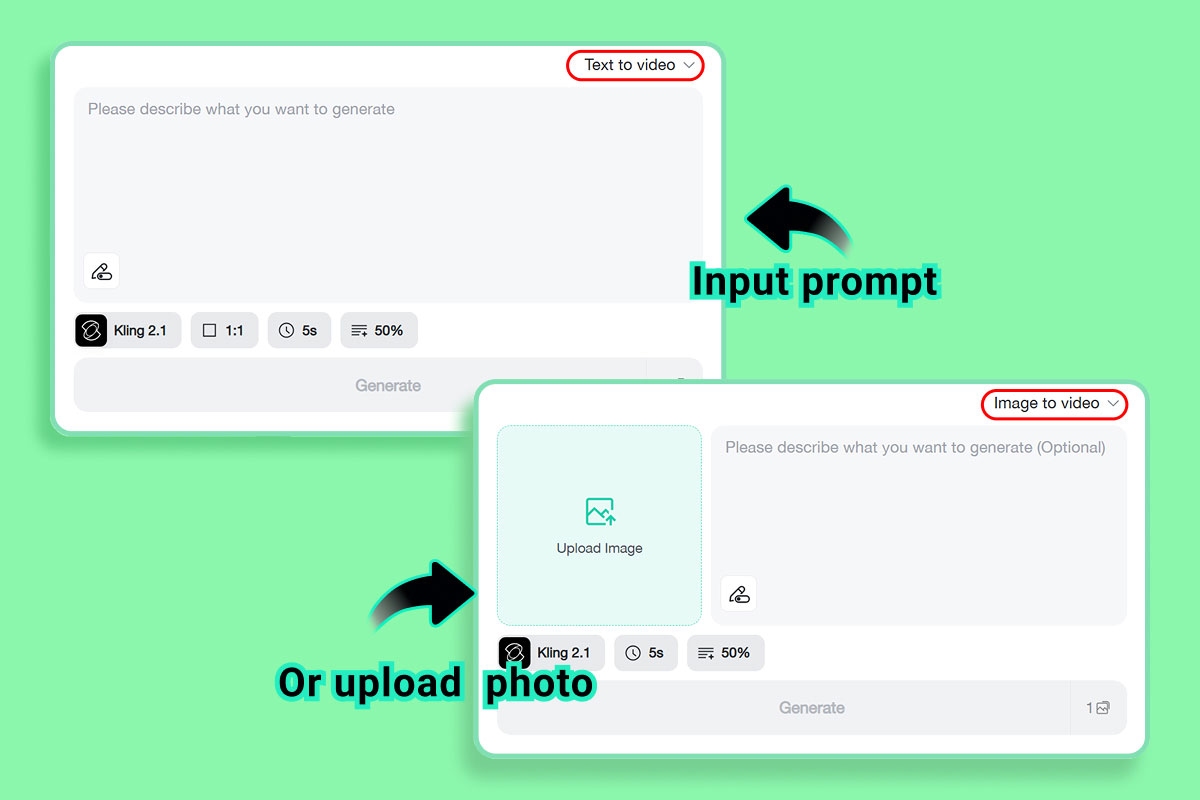
Step 1 Enter a prompt or upload a reference image
Open the video creation workspace and choose how to begin: enter a prompt that describes what viewers should see, or upload a reference image when the starting visual already exists.
Create a 9:16 product teaser for a reusable water bottle on a clean studio background. Begin with a close-up, add a slow camera orbit, and end with the bottle centered in frame.
Keep the first attempt focused on one short scene. A long prompt that asks for several locations, camera moves, and messages at once makes it harder to identify which instruction caused a weak result.
Step 2 Choose the settings and generate
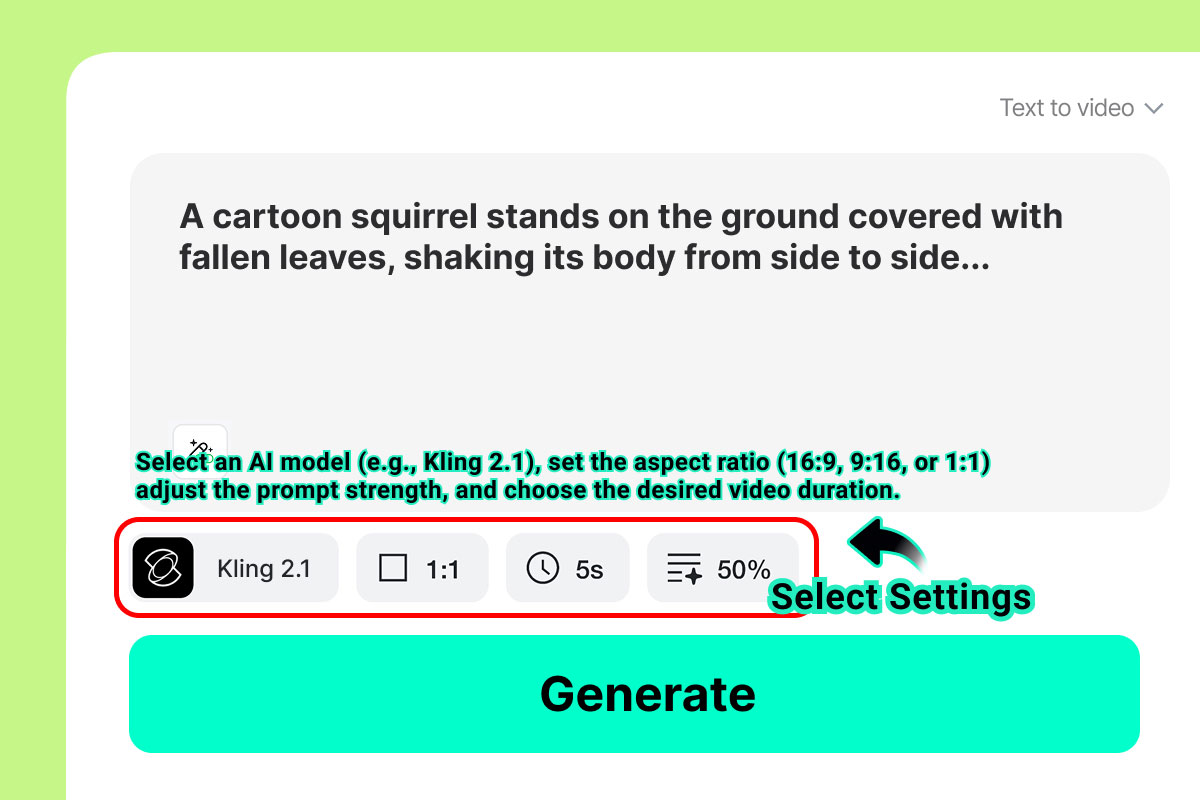
Choose the available model and output settings that fit the destination. Set the aspect ratio for the publishing channel, then review any duration, resolution, or audio controls available for that model. When the prompt, input, and settings agree, click Generate.
Treat model selection as a production decision rather than a ranking exercise. Test one model against the approved prompt and change models only when the output reveals a clear problem. This makes comparisons easier and prevents the team from changing the brief and model at the same time.
Step 3 Preview and review the result
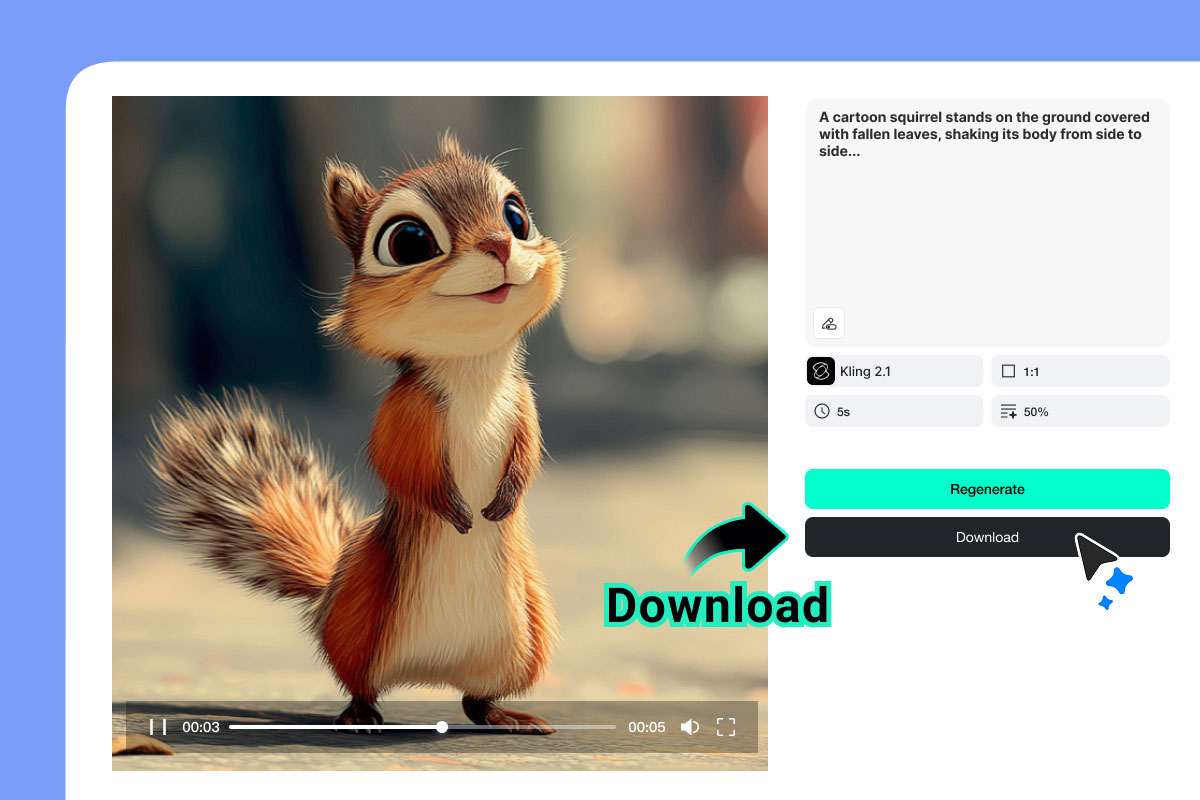
When generation finishes, play the result in the preview area before downloading it. Watch the beginning and ending frames, confirm that the main subject stays recognizable, and check whether the action and camera movement follow the approved brief.
If the result misses the brief, return to the input and change one instruction at a time. For example, replace “cinematic movement” with “a slow clockwise camera orbit” or state exactly where the subject should be at the end. A controlled revision makes it easier to judge whether the new wording improved the video.
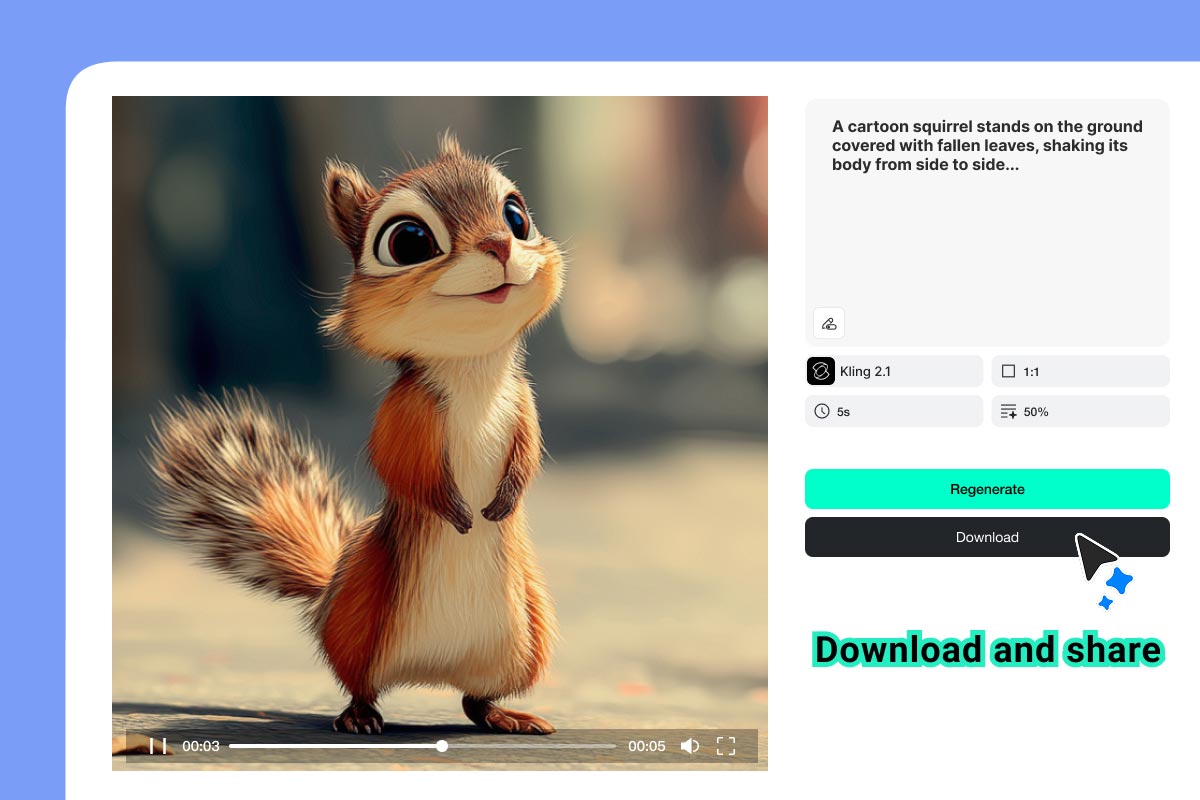
Step 4 Download and share the approved video
Once the clip passes the content and brand review, use Download to save the finished video. Give the exported file a clear campaign name so collaborators can distinguish the approved version from tests and earlier drafts.
Share the downloaded file through the team’s normal review or publishing workflow, then adapt the caption, call to action, and placement for the destination channel. Keep the approved brief with the final asset so later campaign variants can reuse the same decisions.
A practical review checklist
Generation speed matters less than avoiding a weak or inaccurate post. Before publishing, review the clip against the approved brief rather than judging it only on visual polish.
- The subject, action, setting, and final frame match the approved concept
- Product shape, labels, colors, and other identity details remain acceptable
- The aspect ratio fits the exact placement where the clip will appear
- Any generated audio is appropriate and does not obscure the message
- Claims, captions, logos, and calls to action are accurate before publication
How agents and people can share the workflow
The most reliable setup gives automation the repetitive preparation work and keeps people responsible for decisions that affect accuracy, brand, and publication. insMind serves as the production workspace between those stages.
| Stage | Best owner | Practical output |
|---|---|---|
| Research and brief draft | AI agent | Audience summary campaign goal and first prompt draft |
| Brief approval | Marketer or product owner | Approved claims visual priorities and channel requirements |
| Video generation | Creator using insMind | Model choice settings preview and revised clip |
| Final quality check | Human reviewer | Approved MP4 filename caption and publishing destination |
This handoff also creates a useful record. The team can store the approved brief, the final prompt, the selected model, and the exported file together. When a similar campaign returns, those details provide a tested starting point instead of forcing the creator to reconstruct the process.
Where the workflow is most useful
Short product teasers are an obvious fit because the brief can focus on one object, one motion, and one closing frame. The same method can turn a product description into a visual concept for paid social, create a scene for an explainer, or test several campaign directions before a larger production commitment.
Content teams can also use the workflow for controlled variation. Keep the approved message and subject constant, then create separate prompts for vertical and landscape placements or for different opening shots. Review each version independently instead of assuming that one generated clip will work in every channel.
Common questions
Can insMind start from an image as well as text
Yes. The AI video workspace supports text prompts and image-based inputs. Use a prompt-only workflow when the idea is still flexible. Add a product photo or another approved reference when the subject must follow a specific visual source.
Which aspect ratio should a team choose
Choose the ratio required by the publishing placement. Vertical 9:16 suits most full-screen short-video feeds, while 16:9 suits conventional web and YouTube players. Square 1:1 can work for feeds or ad placements designed around that format.
Should a team test several models on every prompt
Usually not. Start with one appropriate model and an approved prompt. Change the model when the preview shows a specific limitation that another option may address. Otherwise, revise the prompt while keeping the model fixed.
Does the generated clip still need review
Yes. A human reviewer should check visual accuracy, brand consistency, claims, audio, and channel fit. AI generation reduces production work, but it does not replace publication approval.
A repeatable path from brief to video
The useful unit in an AI-assisted content system is not a single impressive clip. It is a repeatable process that turns an approved brief into a reviewed asset. insMind supports that process with prompt and image inputs, model selection, delivery settings, preview, and download in one workspace.
Start with one narrowly defined video, keep the prompt and settings with the exported file, and record what changed during review. That small operating habit gives agents, marketers, and creators a clearer handoff the next time the team needs to move from written direction to publishable video.
Interface labels and available models may change as insMind updates its product. Screenshots reflect the interface reviewed on September 7, 2026.